How to Bulk Import Hundreds of SVG Icons into Figma
Importing one SVG into Figma is a two-second task. Importing three hundred of them, one at a time, is a different problem entirely — here’s how to actually do it in bulk.
Why this doesn’t scale manually
Figma lets you select and drop multiple SVG files onto the canvas in one action, which looks like bulk import at first — but each file still lands as its own ungrouped layer, at whatever size and position its source file happened to specify. Turning that into a usable library still means selecting each icon individually, framing it consistently, and converting it to a component by hand. Multiplied across a few hundred icons, the drag-and-drop step was never the bottleneck.
Doing it in one pass
- 01
Select your SVGs
Drop in one file or an entire folder of SVG icons — no prep or renaming required.
- 02
Normalize to 24×24
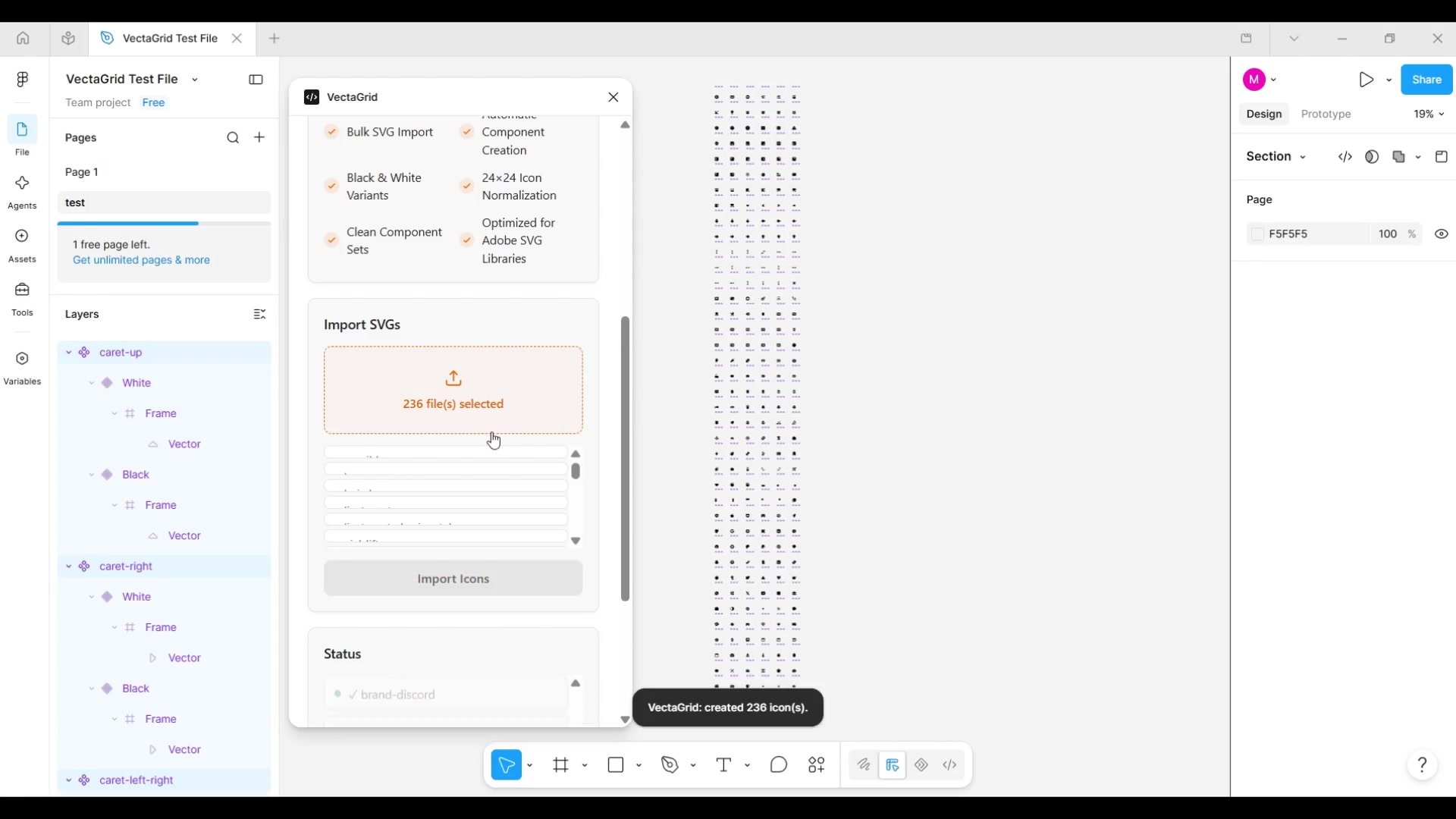
Every icon is parsed, centered, and scaled to fit a clean 24×24 frame, regardless of its original viewBox.
- 03
Generate color variants
Each icon is cloned and recolored into Color=Black and Color=White components.
- 04
Combine as a variant set
Black and White are combined into a single component set, with Black pinned as the default variant.
- 05
Arrange and frame
Every generated set is laid out in a clean grid and framed in your viewport — ready to publish.
The entire batch — whether it’s 20 icons or 100 — runs through the same five steps in one operation, arriving on the canvas already organized and ready to publish.
Common questions
Not as components. You can drag multiple files onto the canvas at once, but each one lands as a separate layer group at whatever size its source file specified — no normalization, no components, no variants. Figma's native multi-file drop only saves you the drag-and-drop, not the actual conversion work.
Skip the manual work — VectaGrid does this automatically.
Drop in a folder of SVGs and get a normalized, variant-ready component library in seconds. Free for up to 100 icons.
Questions first? Email support@mosherlabs.dev or see the full VectaGrid page.